Picture this. It’s 9 PM on a Sunday, and a hot lead sends your business a WhatsApp message asking about pricing. Nobody replies until Monday afternoon, and by then they’ve booked with a competitor who answered in two minutes.
It happens all the time. Your customers already live on WhatsApp, but your CRM lives somewhere else. 😬
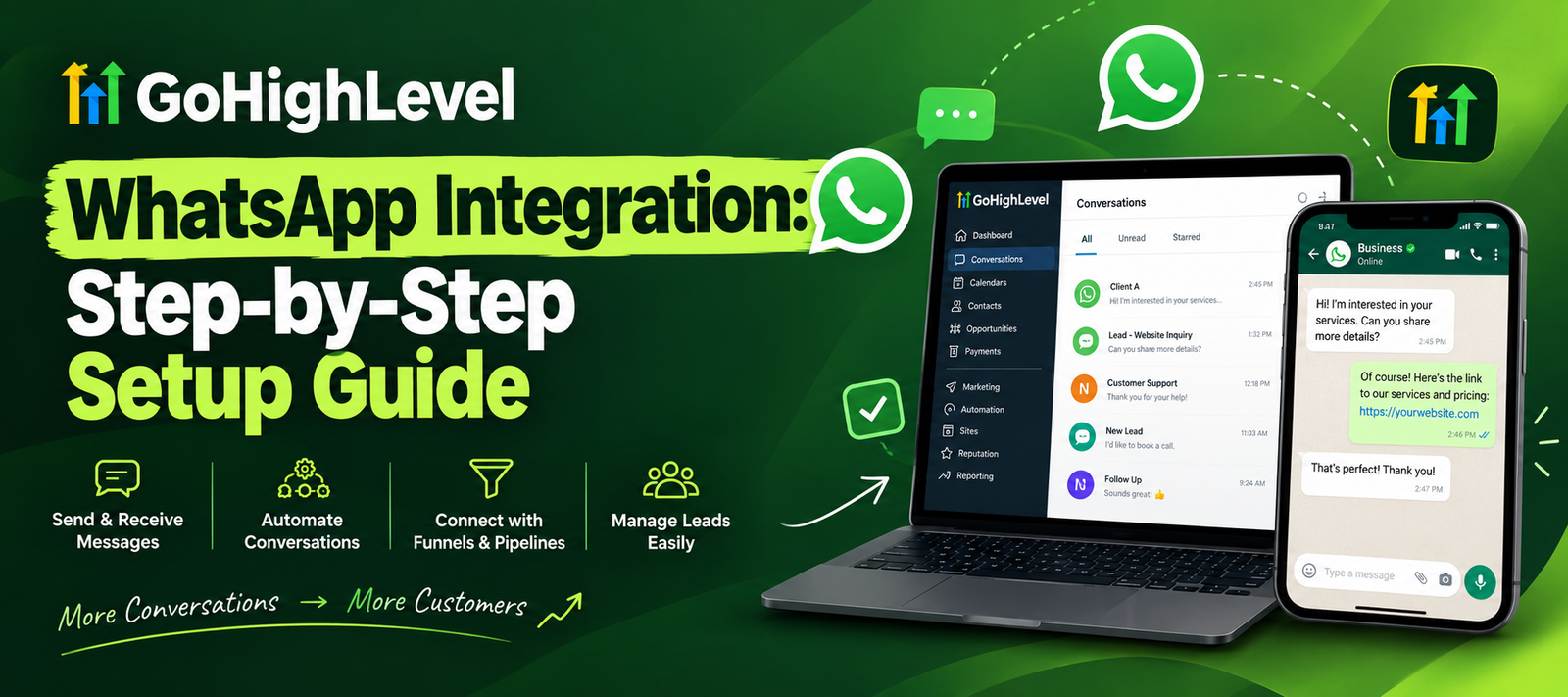
That gap is what GoHighLevel WhatsApp integration closes. Once connected, WhatsApp becomes another channel inside your CRM, next to SMS, email, and calls. Every chat is tied to a contact record, and every reply can trigger an automation.
This guide walks you through the whole process in plain language: what you need, how to connect, how to set up templates, and how to avoid the mistakes that get numbers throttled. Let’s go. 🚀
Key Takeaways
- GoHighLevel connects to the official WhatsApp Business Platform, so chats appear in your Conversations inbox and sync with contacts.
- A verified Meta Business account is the biggest prerequisite, and verification is usually the slowest part of setup.
- Your number can’t be active on the regular WhatsApp app unless you use Coexistence or migrate it first.
- Outside the 24-hour reply window, you can only send pre-approved message templates.
- WhatsApp works with workflows, AI chatbots, and appointment reminders, so you can automate follow-up around the clock.
- Agencies can resell WhatsApp to clients as a recurring-revenue add-on.
Why GoHighLevel WhatsApp Integration Is a Game Changer
Let’s start with the numbers, because they explain why this matters.
WhatsApp has grown from 10 million monthly users in 2010 to well over 3 billion by 2025–2026, and it reports open rates around 98% for business messages. Vendor-reported open rates vary by source, but the direction is clear: messages on WhatsApp get seen. Meta also announced that WhatsApp Business had crossed 200 million monthly active users. ycloudTechCrunch
If your customers are in the UK, UAE, India, Pakistan, Brazil, or Southeast Asia, WhatsApp is often the channel they prefer over email or calls.
Here’s what you gain by connecting it to GHL:
- One inbox. No more switching between the WhatsApp app, your CRM, and your email.
- Instant responses. Workflows and AI can reply while you sleep.
- Full context. Every message lives on the contact record with tags, pipeline stage, and notes.
- Consistent follow-up. Reminders, nurture sequences, and re-engagement run automatically.
If you’re still getting your CRM foundations in place, start with this beginner’s guide to GoHighLevel CRM setup. It makes everything below much smoother.
What You Need Before You Start
A little prep saves you hours of frustration. Check these boxes first.
1. A Meta Business account
You’ll need a Meta Business account, also called a Business Manager or Business Portfolio. Create one at business.facebook.com if you don’t have one. You also need admin permissions on both the Business account and the WhatsApp account. –
2. Business verification
Meta verification is the step people underestimate. It is often the longest part of the whole process, and missing or inconsistent business details can delay approval. Submit complete, matching documents upfront. Skipping verification also leaves you with low messaging limits, and some marketing templates may not send at all.
3. A phone number you control
Choose a number that can receive an SMS or voice call for the verification code. A number can only be connected to one WhatsApp setup at a time, so confirm its current status before you begin.
4. A GoHighLevel sub-account
WhatsApp is set up per sub-account. If you run an agency, plan which client accounts will get it first. Not sure which plan fits? Compare tiers in this GoHighLevel pricing breakdown.
GHL WhatsApp Setup Step by Step
Menu labels can shift slightly as HighLevel updates the platform, so treat this as a map rather than a script. The official HighLevel WhatsApp setup article is the source of truth if something looks different.
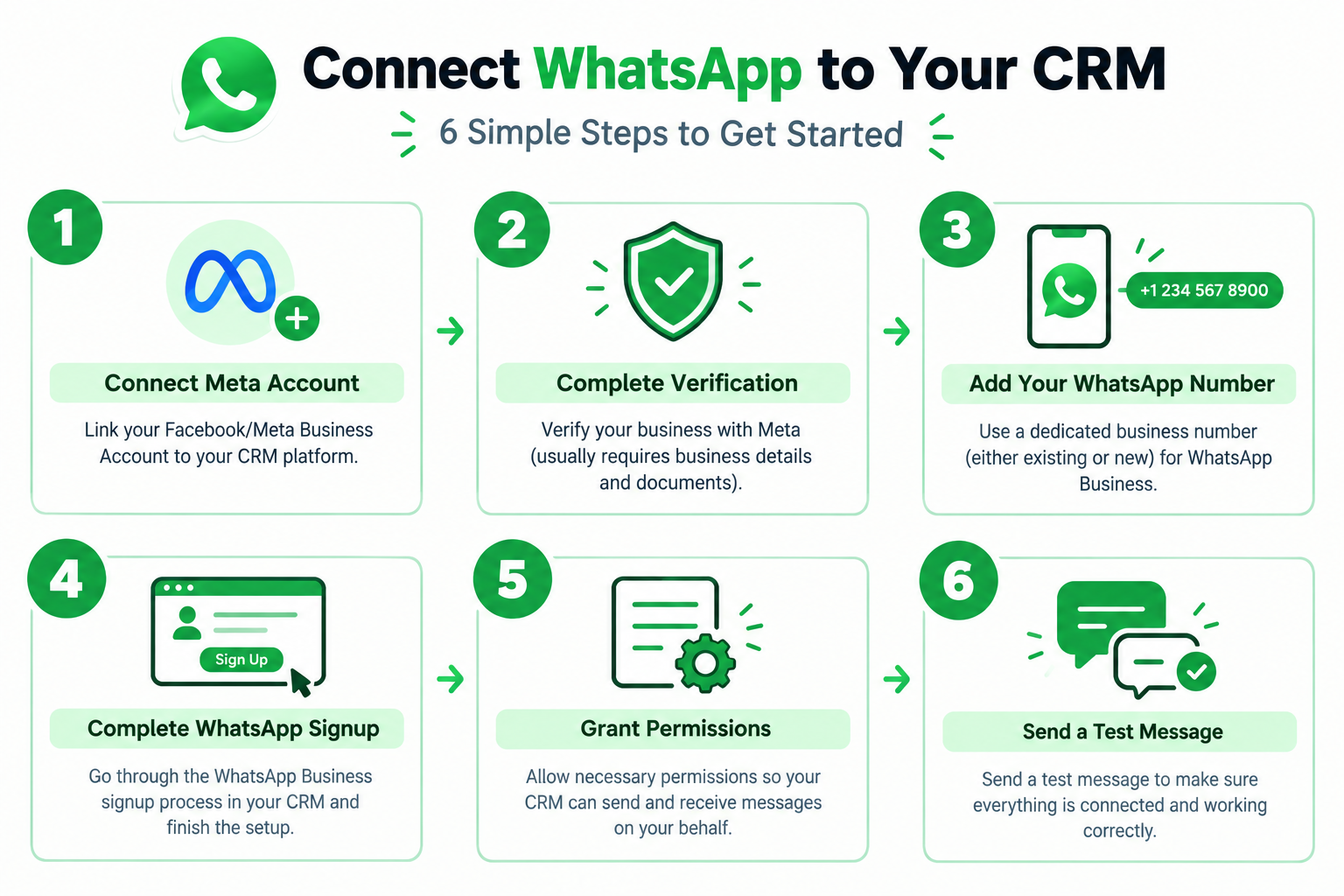
Step 1 Open the WhatsApp settings
Log into your sub-account and go to Settings → WhatsApp. Some accounts show it under the phone numbers area, so look there too if you don’t see it.
Step 2 Choose your connection method
HighLevel offers different paths depending on your situation, including connecting an existing WhatsApp Business App, setting up a new number, and migrating from another Business Solution Provider. Here’s how to choose: HighLevel
| Your situation | Best method |
|---|
| Already using the WhatsApp Business app and want to keep it | Coexistence |
| Brand-new number just for GHL | New number setup |
| Currently using another API provider | Migration from your existing BSP |
Step 3 Understand Coexistence
Coexistence lets you run WhatsApp on your phone and inside HighLevel at the same time. You can sync chats and contacts, run automations and broadcasts, and still keep features like Status, Groups, and Calls. HighLevel
One important limit: Coexistence isn’t available for phone numbers from Nigeria or South Africa. Since Meta’s requirements can change, review the HighLevel Coexistence guide before you start. HighLevel
Step 4 Complete Meta’s embedded signup
HighLevel sends you into Meta’s signup flow. You’ll typically:
- Log in with the Facebook account that admins your Business account.
- Select or create your business portfolio.
- Select or create your WhatsApp Business Account.
- Enter a professional display name. Meta reviews it, so keep it on-brand and compliant.
- Enter your phone number in international format.
- Choose SMS or voice verification and enter the code you receive.
- Approve the permissions HighLevel requests.
Step 5 Using a LeadConnector number
Don’t have a spare number? You can buy one inside HighLevel. Per HighLevel’s guide, you go to Phone Numbers → Add Number, buy the number, and set up call forwarding if the number only supports voice. If you choose SMS verification, the Meta code appears in your Conversations tab as an incoming message. The full walkthrough is in HighLevel’s article on using a LeadConnector or Twilio number for WhatsApp. HighLevelHighLevel
 Watch out: If your personal WhatsApp account already uses the number, you must delete it first, and your chat history won’t migrate. Back things up before you delete anything.
Step 6 Send a test message
Message yourself and a teammate. Confirm that:
- Inbound replies land in Conversations
- The contact record is created or updated
- Outbound messages show as delivered
If this works, your GHL WhatsApp setup is technically done. Now for the part that actually makes money. Stuck on Meta verification or number migration?
Our GHL specialists handle the entire connection for you, from Business Manager to a live test message. Book a free strategy call and we’ll get you live fast.
Templates and the 24-Hour Window Explained
This is where most beginners stumble, so read it twice.
WhatsApp separates conversations into two modes:
- Inside the 24-hour window. After a customer messages you, you can reply freely for the next 24 hours.
- Outside the window. You can only send pre-approved templates.
A free-form WhatsApp action that fires outside an open session silently fails, so anything time-delayed in a workflow must use a template. Build your automations with that in mind.
Utility versus marketing templates
- Utility templates cover order updates, appointment confirmations, and reminders.
- Marketing templates cover promotions, offers, and re-engagement.
Sending marketing content through utility templates gets caught by Meta’s classifiers, which can pause your templates and hurt your quality rating. Label your templates honestly.
A template example you can copy
Appointment reminder (utility):
Hi {{1}}, this is a reminder that your appointment with {{2}} is tomorrow at {{3}}. Reply YES to confirm or NO to reschedule.
Short, useful, and it invites a reply, which opens a fresh 24-hour wind
Build WhatsApp CRM Automations That Convert
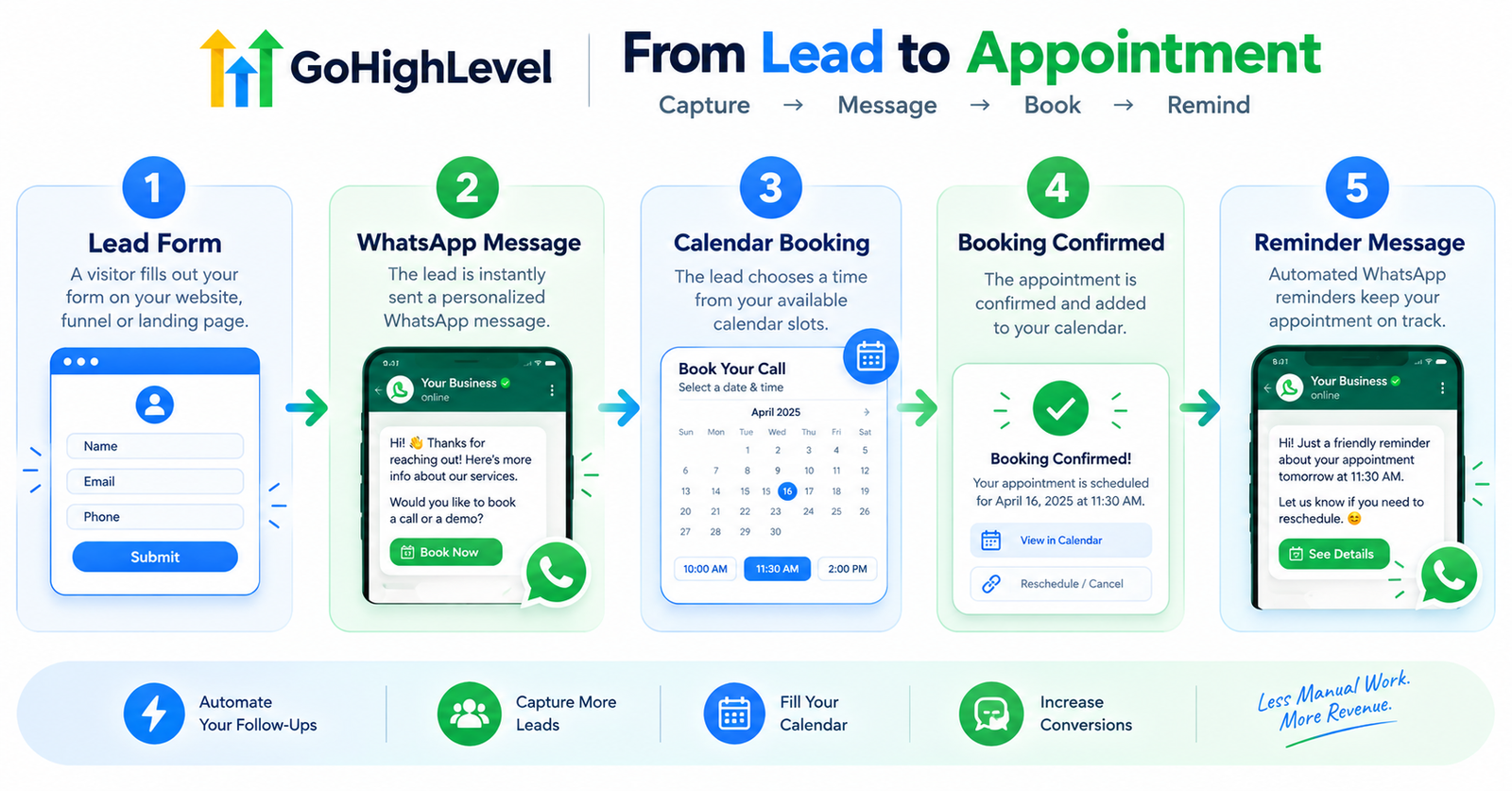
Here’s where the whatsapp crm side pays off. Once WhatsApp is inside GHL, you can trigger messages from almost anything: a form submission, a pipeline stage change, a missed call, or a booked appointment.
Automation idea 1 Instant lead response
Trigger: Form submitted → Action: Send a WhatsApp template welcoming the lead and asking one qualifying question.
Automation idea 2 Booking reminders
Trigger: Appointment booked → Actions: Send confirmation now, a reminder 24 hours before, and another 2 hours before. This alone can noticeably cut no-shows. Pair it with a well-built calendar and pipeline setup.
Automation idea 3 Missed-call text back
Trigger: Missed call → Action: Send a WhatsApp message saying “Sorry we missed you, how can we help?”
Automation idea 4 Re-engagement
Trigger: Contact inactive for 30 days → Action: Send a marketing template with a helpful offer and an easy opt-out.
Automation idea 5 Real estate follow-up
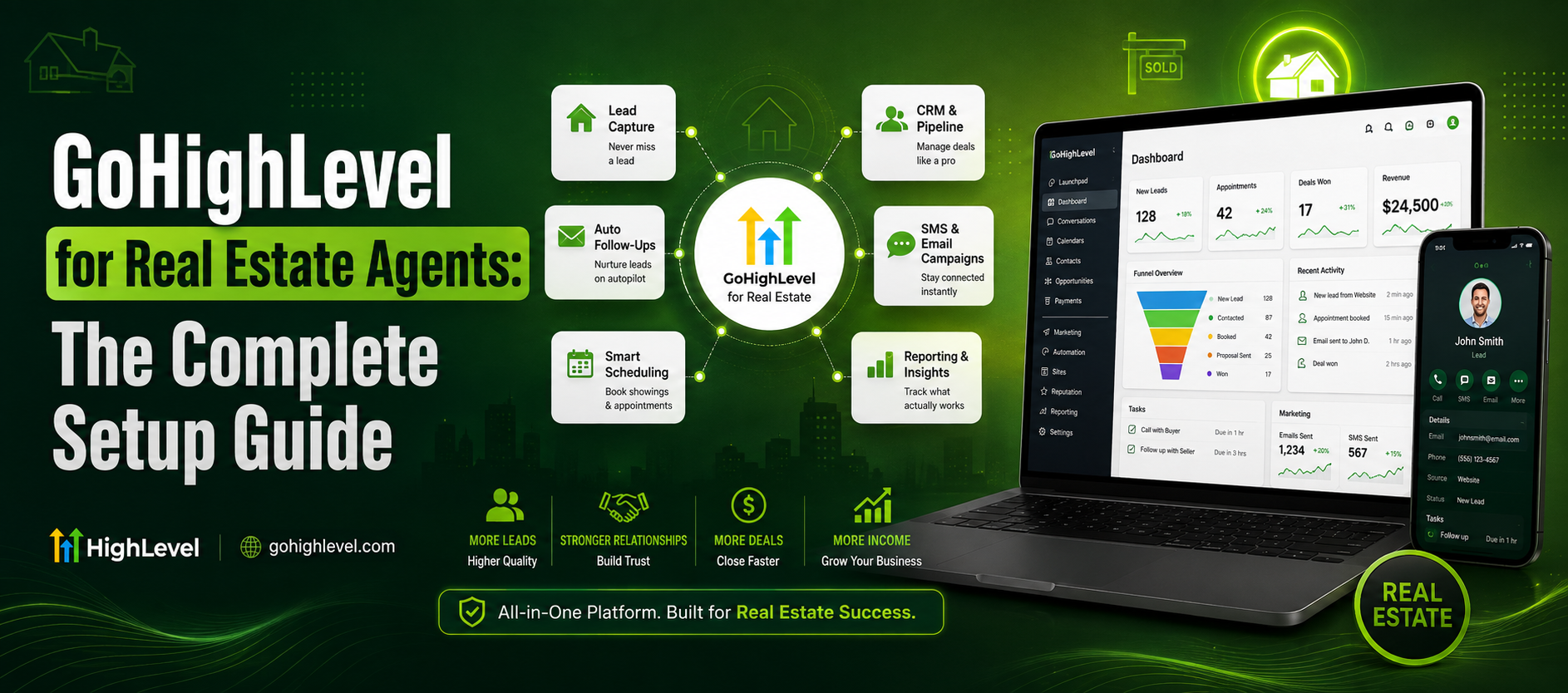
Agents lose deals by replying slowly. A WhatsApp workflow that answers enquiries instantly and shares listings can change that. See how it works in our GoHighLevel setup guide for real estate agents.
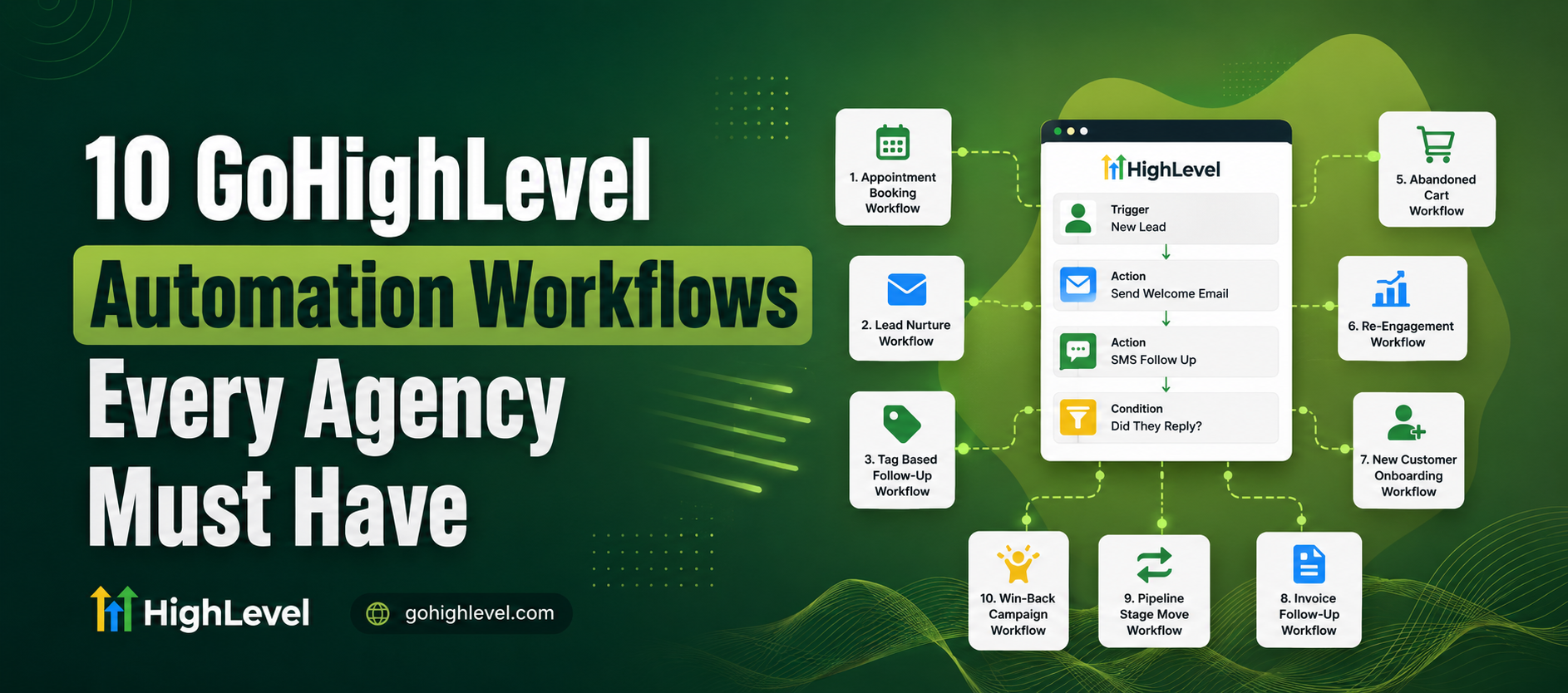
For more workflow inspiration, browse our deep dive on GoHighLevel automation workflows.
Add AI to Your GoHighLevel Messaging
Automation handles the predictable stuff. AI handles the unpredictable questions.
Pairing WhatsApp with an AI chatbot means leads get useful answers at 3 AM instead of a “we’ll get back to you” message. The bot can qualify the lead, answer FAQs, and book a call directly into your calendar. Read how it works in AI chatbots for businesses, or see our AI chatbot service.
Prefer voice? Our AI voice agents can call leads while your WhatsApp flows nurture them. If you’re weighing the two, this comparison of an AI voice agent versus a human receptionist will help.
Good gohighlevel messaging feels like a helpful team member, not a robot. Keep replies short, friendly, and always give people a clear path to a human.
Let’s Build Something Powerful Together
Ready to take your business online or automate your workflow?
Whether you need a high-converting WordPress site or a complete GoHighLevel setup — we’ll make it happen.
Common Mistakes and How to Avoid Them
After helping many clients connect channels, these are the pitfalls we see most.
- Skipping Meta verification. You’ll hit low messaging tier limits quickly, and marketing templates to new contacts may not send.
- Blasting broadcasts like email. Blocks and reports lower your number’s quality rating, and Meta can throttle or suspend low-quality senders. Use frequency caps and make opt-outs easy.
- Forgetting snapshots don’t carry template approvals. After deploying from a snapshot, you need to resubmit templates in the new sub-account.
- Incorrect field mapping. Bad workflow configuration can make contact data or triggers behave unexpectedly. Always test before going live.
- Ignoring SMS compliance. If you also text US customers, register for A2P 10DLC so those messages keep flowing. Our A2P 10DLC service and the A2P 10DLC registration guide cover it end to end.
Pricing and Reselling for Agencies
WhatsApp costs come from two places: HighLevel’s platform charges and Meta’s per-message fees, which vary by message type and country. Because these change, always check HighLevel’s and Meta’s current pricing pages before quoting clients. Meta publishes its rates on the WhatsApp Business Platform pricing page.
If you run an agency, HighLevel also supports reselling WhatsApp, so you can set your own client pricing and turn it into recurring revenue. That fits neatly into a white-label GoHighLevel agency model. If you need extra hands for setup, support, or inbox management, consider hiring a GHL virtual assistant
Want WhatsApp, workflows, and AI running without the headache?
Explore our GoHighLevel services or see real results in our project gallery. We build, test, and hand over a system that works.
Let’s Build Something Powerful Together
Ready to take your business online or automate your workflow?
Whether you need a high-converting WordPress site or a complete GoHighLevel setup — we’ll make it happen.
Is GoHighLevel the Right Home for Your WhatsApp CRM?
Frequently Asked Questions
Conclusion
Connecting WhatsApp to GoHighLevel isn’t complicated, but the details matter: a verified Meta Business account, the right connection method, approved templates, and workflows that respect the 24-hour window. Get those right, and your CRM stops being a place where leads go to wait. It becomes a place where conversations happen.
Start with a simple win, like instant lead replies or appointment reminders, then layer on AI and re-engagement campaigns. If you’d rather skip the trial and error, we’re happy to help.
Ready to launch your WhatsApp CRM?
Talk to the Hexalevel team or learn more about us. We’ll set it up, test it, and make sure it converts.

 Watch out: If your personal WhatsApp account already uses the number, you must delete it first, and your chat history won’t migrate. Back things up before you delete anything.