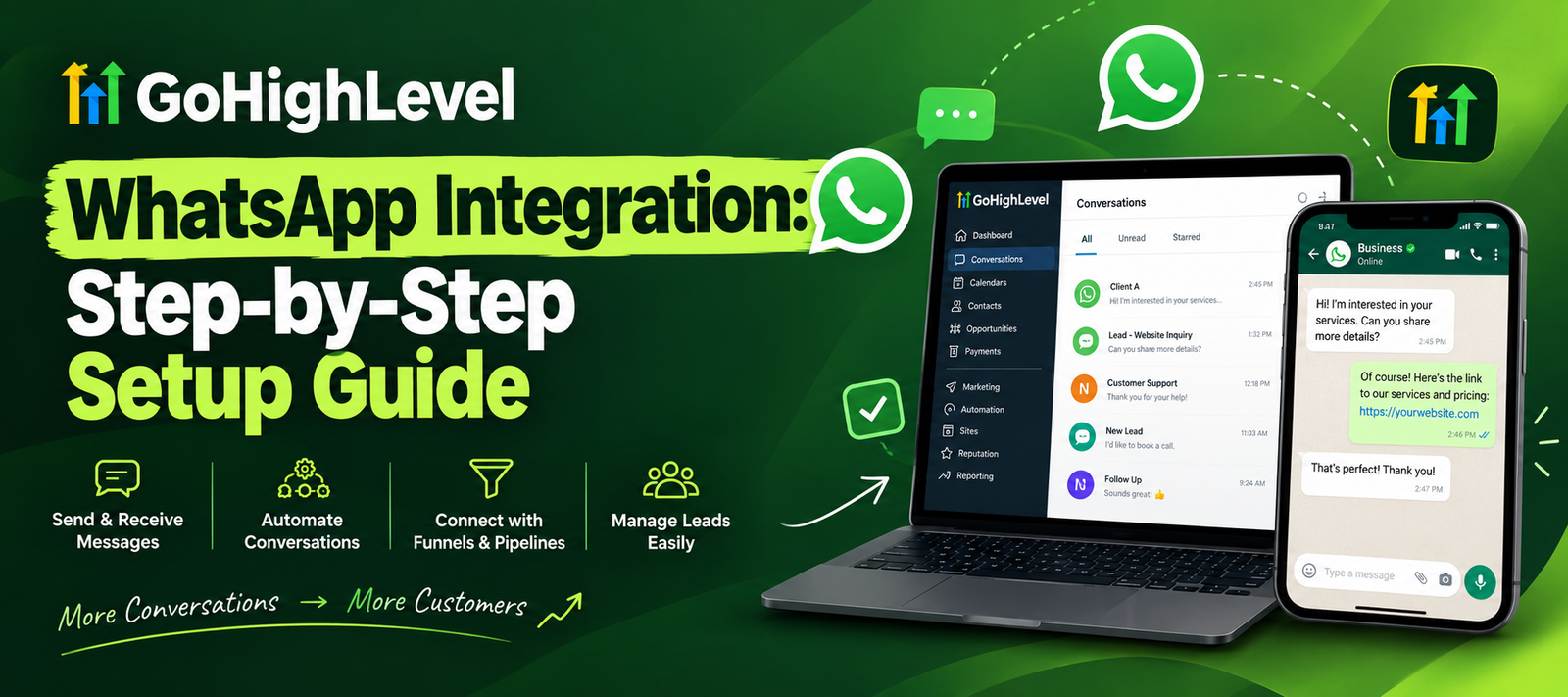
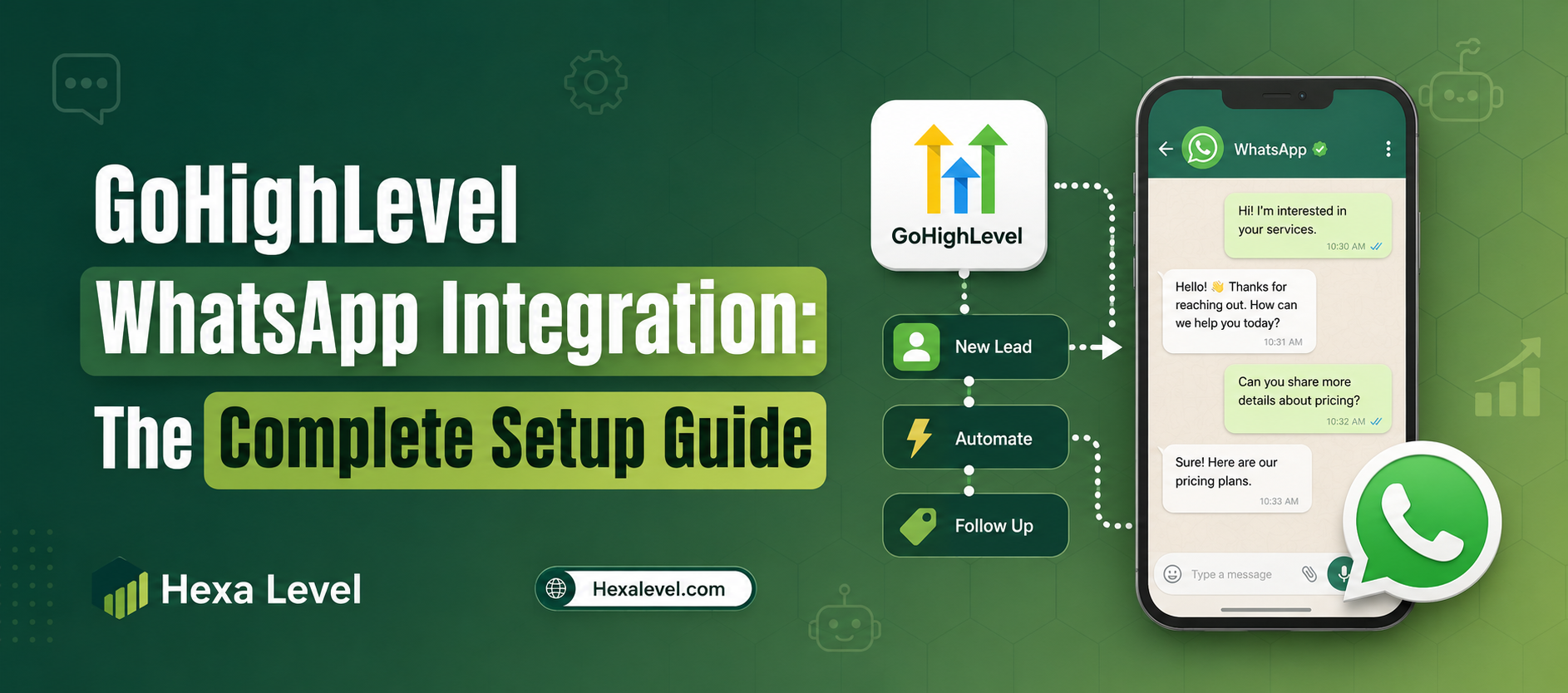
Imagine sending a follow-up message to a hot lead and getting a reply in under 60 seconds. No email. No cold call. Just a quick WhatsApp ping that converts. That’s the power of GoHighLevel WhatsApp Integration, and in this guide, you’ll learn exactly how to set it up, automate it, and use it to grow your business faster than ever before.
Whether you’re a marketing agency, coach, consultant, or local business owner, connecting WhatsApp to your GoHighLevel (GHL) account is one of the highest-ROI moves you can make in 2026.
Key Takeaways
- GoHighLevel WhatsApp Integration allows you to send and receive WhatsApp messages directly inside GHL
- You can automate follow-ups, lead nurturing, and appointment reminders using GHL workflows
- The integration requires a Meta Business account and WhatsApp Business API access
- Two main integration paths exist: native GHL WhatsApp and third-party tools like Twilio
- Proper setup can reduce lead response time from hours to seconds
- GoHighLevel WhatsApp Automation can be combined with AI chatbots for 24/7 lead handling
- This guide covers setup, troubleshooting, automation examples, and expert tips
Why WhatsApp Is the #1 Messaging Channel for Business
Let’s be real email open rates are struggling. SMS is saturated. But WhatsApp? It’s still pulling 98% open rates and sits on over 2.78 billion active users worldwide (Statista, 2025). That’s not a channel you ignore.
For businesses using GoHighLevel, WhatsApp isn’t just a messaging app it becomes a full-blown sales and marketing channel. You can automate outreach, manage two-way conversations, book appointments, and even run drip campaigns, all from inside your GHL dashboard.
And here’s the thing: most of your competitors haven’t set this up yet. That means right now is the perfect time to get ahead.
What Is GoHighLevel WhatsApp Integration
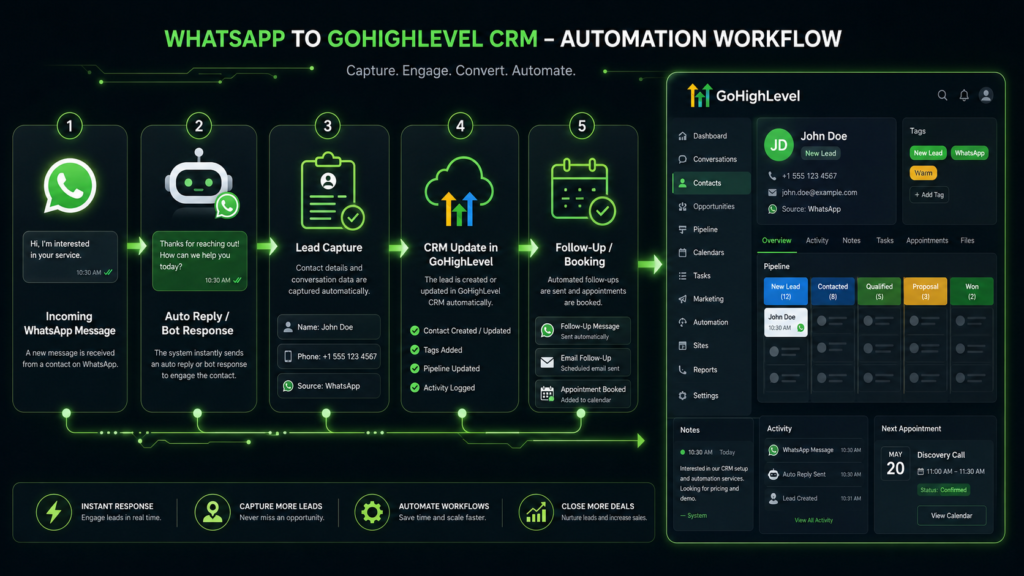
GoHighLevel WhatsApp Integration is the process of connecting your WhatsApp Business account (via the WhatsApp Business API) directly into your GoHighLevel CRM. Once connected, you can:
✅ Send and receive WhatsApp messages from the GHL Conversations tab
✅ Trigger automated WhatsApp messages inside workflows
✅ Use WhatsApp for appointment reminders, lead follow-ups, and re-engagement
✅ Build two-way conversations with prospects and clients
✅ Track message delivery, read receipts, and response rates
This isn’t your personal WhatsApp. This is the official WhatsApp Business API the enterprise-grade solution built for scaling communication.
GoHighLevel WhatsApp Setup What You Need Before Starting
Before diving into the GoHighLevel WhatsApp Setup process, make sure you have the following ready:
1. A Meta Business Account
You need a verified Meta Business Manager account. If you don’t have one, head to business.facebook.com and create one. Make sure your business is verified Meta requires this for API access.
2. A WhatsApp Business API Account
This is different from the free WhatsApp Business App. The API version is what GHL connects to. You can get this through Meta directly or through a Business Solution Provider (BSP).
3. A Dedicated Phone Number
Use a clean phone number that is NOT already registered to a personal or standard WhatsApp account. A virtual number works great here.
4. An Active GoHighLevel Account
You’ll need either a GHL Agency account or a Sub-Account with messaging features enabled. If you’re not on GoHighLevel yet, you can check out our detailed GoHighLevel Review to understand what the platform offers.
How to Connect WhatsApp to GoHighLevel Step-by-Step
This is the section you came for. Let’s walk through exactly how to connect WhatsApp to GoHighLevel, step by step.
Step 1: Go to Your GHL Sub-Account Settings
Log into your GoHighLevel account. Navigate to the Sub-Account you want to set up WhatsApp for. Go to Settings > Phone Numbers > WhatsApp.
Step 2: Click “Add WhatsApp Number”
Inside the WhatsApp settings panel, you’ll see an option to add a new WhatsApp number. Click it, and GHL will redirect you to Meta’s embedded signup flow.
Step 3: Complete Meta’s Embedded Signup
This is where you’ll:
- Log into your Meta Business account
- Create or select a WhatsApp Business Account (WABA)
- Choose the phone number you want to use
- Verify the number via OTP (one-time passcode)
Make sure your Meta Business account is fully verified before this step unverified accounts often hit approval walls.
Step 4: Set Your WhatsApp Display Name
Choose a professional display name for your business. This is what contacts will see when you message them. Meta reviews this name, so keep it on-brand and compliant.
Step 5: Enable Two-Way Messaging
Once the number is connected, head back to GHL and toggle on two-way messaging in your WhatsApp settings. This allows contacts to reply and for those replies to appear inside your Conversations tab.
Step 6: Test the Connection
Send a test message to yourself or a team member. Confirm that:
- The message sends successfully
- Replies appear in GHL Conversations
- Message status (sent, delivered, read) updates correctly
🎉 Congratulations your GoHighLevel WhatsApp Setup is complete!
Let’s Build Something Powerful Together
GoHighLevel WhatsApp Automation Building Your First Workflow
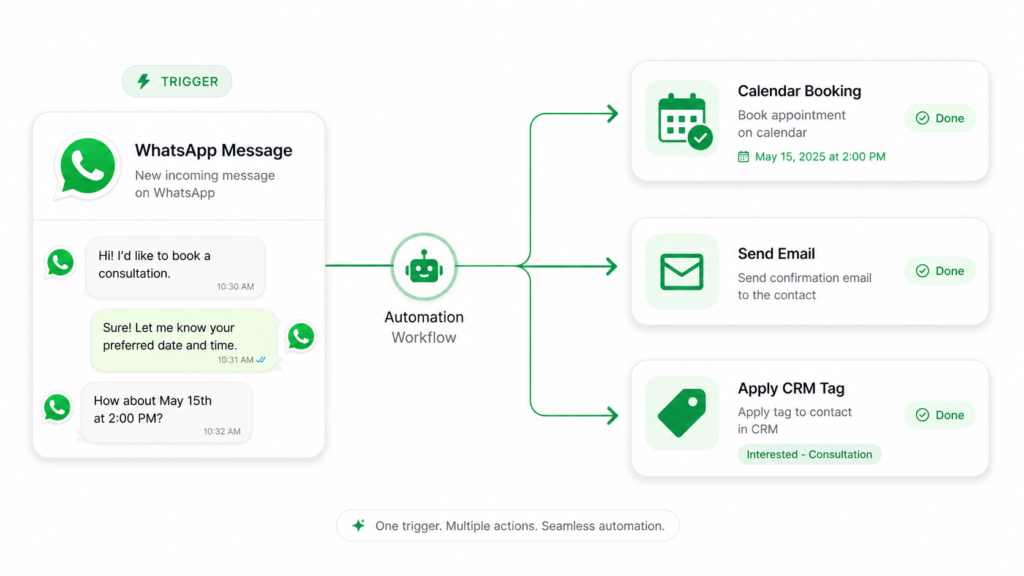
Once your number is connected, the real magic begins with GoHighLevel WhatsApp Automation. Here’s how to build your first automated WhatsApp workflow inside GHL.
Setting Up a Lead Follow-Up Automation
Trigger: New contact added to a pipeline stage (e.g., “New Lead”)
Action 1: Wait 2 minutes
Action 2: Send WhatsApp Message
- Template: “Hey [First Name] 👋 This is [Your Name] from [Business]. Thanks for reaching out! Quick question — are you available for a 15-minute call this week?”
Action 3: Wait 24 hours
Action 4 (If No Reply): Send follow-up WhatsApp
- Template: “Hey [First Name], just checking in! We’d love to connect. Here’s our calendar link: [Link]”
Action 5: Tag contact as “WhatsApp Follow-Up Sent”
This simple 5-step workflow can dramatically increase contact rates. Businesses using automated WhatsApp follow-ups report 3–5x higher response rates compared to email alone.
Appointment Reminder Automation
Trigger: Appointment confirmed in GHL Calendar
Action 1: Send WhatsApp reminder 24 hours before
- “Hi [First Name]! Just a reminder your appointment with [Business] is tomorrow at [Time]. Reply YES to confirm or NO to reschedule.”
Action 2: Send WhatsApp reminder 1 hour before
- “Your appointment is in 1 hour! Here’s the Zoom link: [Link]. See you soon!”
This alone can cut no-shows by up to 40%, saving agencies and service businesses thousands of dollars monthly.
WhatsApp Templates What You Need to Know
When using the WhatsApp Business API, you can’t just send any message to a contact you haven’t interacted with in 24 hours. This is where WhatsApp Message Templates come in.
What Are WhatsApp Templates?
Templates are pre-approved message formats submitted to Meta for approval. They are used for outbound messaging outside of an active conversation window.
Types of Templates
📢 Marketing Templates: Promotions, offers, re-engagement campaigns
📋 Utility Templates: Appointment reminders, order updates, confirmations
🔐 Authentication Templates : OTP codes and account verification messages
How to Create Templates in GHL
- Go to Settings > WhatsApp > Message Templates
- Click “Create New Template”
- Fill in the template name, category, language, and body text
- Use variables like {{1}} for dynamic fields (name, date, link)
- Submit for Meta review (typically takes 24–48 hours)
Pro tip: Keep templates conversational. Meta rejects overly promotional or spammy-sounding templates. Write like a human, not a marketing robot.
Troubleshooting Common GoHighLevel WhatsApp Issues
Even with a perfect setup, things sometimes go sideways. Here are the most common issues and how to fix them.
Issue 1: Messages Not Sending
Cause: The phone number isn’t fully verified, or the WhatsApp account is in a restricted state. Fix: Check your Meta Business Manager for any alerts or restricted status. Complete any pending verifications.
Issue 2: Templates Getting Rejected
Cause: Language too promotional, missing opt-in consent language, or improper variable formatting. Fix: Rewrite the template in a more neutral, helpful tone. Review Meta’s template guidelines before resubmitting.
Issue 3: Two-Way Messages Not Showing in GHL
Cause: Webhook configuration issue or the contact replied using a different number. Fix: Check your webhook settings in GHL and Meta. Confirm the contact is replying from the same number on file.
Issue 4: Meta Embedded Signup Loop
Cause: Meta account not fully verified, or browser cache/cookie issues. Fix: Clear browser cache, use a fresh private window, and ensure Meta Business verification is complete.
How to Connect WhatsApp to GoHighLevel Using Twilio (Alternative Method)
If you’re facing issues with the native GHL WhatsApp integration, Twilio offers a solid alternative path.
Twilio WhatsApp Setup Steps
- Create a Twilio account at twilio.com
- Navigate to Messaging > Senders > WhatsApp Senders
- Request a WhatsApp-enabled number (or use your own via Twilio’s sandbox first for testing)
- In GoHighLevel, go to Settings > Phone Numbers > Add Number > Twilio
- Enter your Twilio Account SID, Auth Token, and WhatsApp number
- Configure webhook URLs in Twilio to point to your GHL instance
This method gives you more granular control but requires a bit more technical know-how. For most users, the native GHL integration is the recommended path.
Let’s Build Something Powerful Together
Advanced GoHighLevel WhatsApp Automation Strategies
Once your basic setup is running, here are some advanced strategies to take your GoHighLevel WhatsApp Automation to the next level.
Strategy 1: AI Chatbot + WhatsApp
Pair your WhatsApp channel with GHL’s AI Chatbot feature. When a lead messages you on WhatsApp, the AI responds instantly, qualifies the lead, and books an appointment all without human involvement. You can learn more about how this works on our AI Chatbot service page.
Strategy 2: WhatsApp + CRM Pipeline Automation
Set up workflows so that when a contact reaches a certain pipeline stage, they automatically receive a WhatsApp message. For example:
- Stage: “Proposal Sent” → WhatsApp: “Hey [Name], just sent over your custom proposal! Let me know if you have any questions 😊”
- Stage: “Contract Signed” → WhatsApp: “Welcome aboard! Here’s your onboarding link: [Link]”
This creates a seamless, personal-feeling experience that’s actually 100% automated.
Strategy 3: WhatsApp Re-Engagement Campaigns
For leads who went cold, run a WhatsApp re-engagement campaign every 60–90 days. Keep it casual, human, and helpful. A simple “Hey, are you still looking for [service]? We have a few spots open this month” can revive leads you thought were lost forever.
Strategy 4: Broadcast Lists for Client Updates
Use WhatsApp broadcasts to send updates, tips, or promos to opted-in contacts. This is especially powerful for agencies managing retainer clients a quick broadcast beats a monthly newsletter every single time.
GoHighLevel WhatsApp Integration vs Other Messaging Channels
| Feature | SMS | ||
|---|---|---|---|
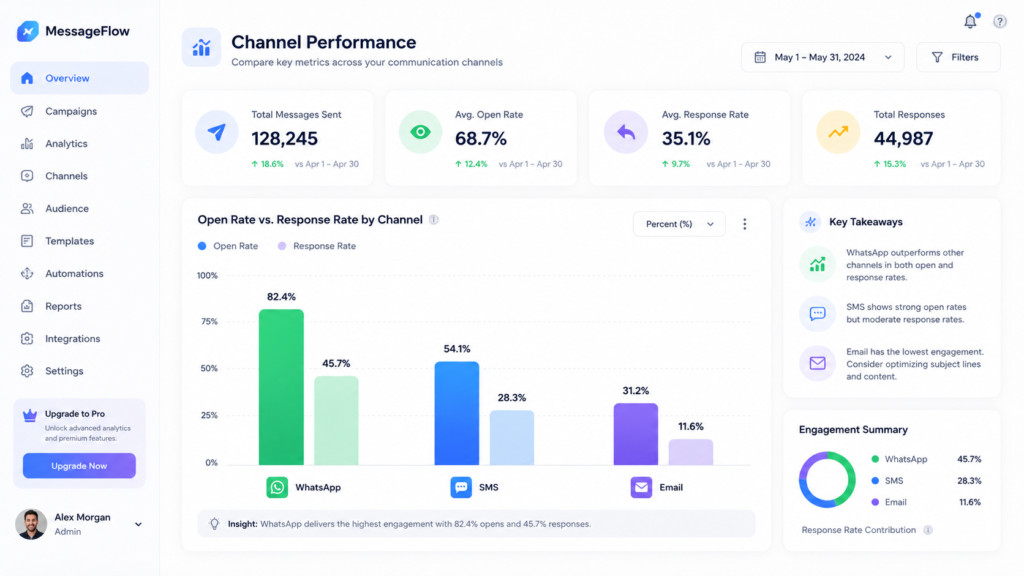
| Open Rate | 98% | 82% | 20–25% |
| Response Rate | 40–60% | 30–45% | 2–5% |
| Cost per Message | Low–Medium | Low | Very Low |
| Rich Media Support | Yes | Limited | Yes |
| API Availability | Yes (Meta) | Yes | Yes |
| Best For | High-touch sales, reminders | Quick alerts | Newsletters, long-form |
The numbers speak for themselves. For any business that relies on human conversations to close deals, WhatsApp is the clear winner.
Let’s Build Something Powerful Together
Frequently Asked Questions
What is GoHighLevel WhatsApp Integration?
Do I need a WhatsApp Business API account for GHL integration?
Is GoHighLevel WhatsApp Integration free?
Can I use my personal WhatsApp number for GHL?
How long does Meta's template approval take?
What is the difference between native GHL WhatsApp and Twilio WhatsApp?
Conclusion
GoHighLevel WhatsApp Integration is not just a nice-to-have in 2026 it’s a genuine competitive advantage. From faster lead response times to fully automated nurture sequences, connecting WhatsApp to your GHL CRM can transform how your business communicates and converts.
We covered everything in this guide: the prerequisites, the step-by-step GoHighLevel WhatsApp Setup process, how to build automations, template creation, troubleshooting, advanced strategies, and a comparison with other channels. You now have everything you need to get started.
The question isn’t whether you should set up GoHighLevel WhatsApp Automation it’s how quickly you can get it running. Every day without it is a day your competitors have an edge.
Need help getting it done fast and right? The Hexalevel team has you covered. Book your free strategy call now and let’s build something powerful together.